
Combo Box Autofill Issue (1 Viewer)

MattBaldry

Self Taught, Learn from the Forums
Local time
Today, 21:47
Joined
Feb 5, 2019
Messages
365
Hi All,

I have a new issue that has appeared with Windows 11. Below is an image with 6 combo boxes. All of these are setup the same with properties.

They all have 2 columns, with the first PK bound column width at 0cm. A query displays the right information, the combo holds the number.

The customer combo does NOT start to autofill when I type into, unless I put it into a dropdown state.

All the other combos DO start to autofill when I type into them. This doesn't happen on Windows 10.
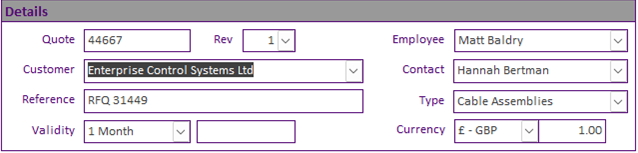
Combo Issue.png


Has anyone else experienced this with Windows 11?

~Matt
 
Some new information, if I change the row source to the tbl, it works. If I base the combo on a query, it fails....

~Matt
 
Try setting the sort property on the control to sort by the text field.
Hi Pat,

I already have this setup. This issue seems to be Windows 11 related, as I can open the same database on Windows 10 and there are no issues.

I have now switched back to my older, slower machine on Windows 10 as access run faster this way. Windows 11 was slower on every form used, which is very frustrating as the new machine is better for everything.

My main form on my old machines opens in less than a second. The same form on the newer Windows 11 machine is anywhere between 5 and 12 seconds, it makes no sense to me.

Any form based on a query is now painfully slow. But forms based on tables are lightning fast. Is there a query handling issue in Windows 11?

~Matt
 
Try not to be so pessimistic, Pat. The Access team does review feedback, although there is a lot, so it may take time if only a small number of users are encountering an issue.

Matt, it does sound like a problem we should address if it only happens on Windows 11. The easiest way for us to find the issue would be if you could share a database that shows the problem (presumably with 'fake' data, and maybe extraneous controls removed, or maybe you can make a small case from scratch that shows the problem). If you can't share that, maybe you can share the SQL of the query you are using to fill the combo.

Shane
 
This issue is still live. I have reported the issue, but nothing yet. It is not consistent on all combo boxes. Some work, some don't. Seems the fewer rows in the list, the better it works. It could not be more frustrating. I have a combo box where I really need to see the information I am typing, but it just will not work.

~Matt
 
Update. I have now run out of things to try.

If I change the combo box to a different source with less rows, it works. Change it back to the source I want, fails

New query, fails
New form, fails
New database, fails

All options work on Windows 10.

It seems to be down to the number of rows. SQL for this is below, output is 31,697 rows

Code:
SELECT tblProductLabourDuplicate_LOCAL.ProductID, tblProductLabourDuplicate_LOCAL.ProductCode AS [Product Code]
FROM tblProductLabourDuplicate_LOCAL
WHERE (((tblProductLabourDuplicate_LOCAL.ProductLabourID) Is Not Null))
GROUP BY tblProductLabourDuplicate_LOCAL.ProductID, tblProductLabourDuplicate_LOCAL.ProductCode
ORDER BY tblProductLabourDuplicate_LOCAL.ProductCode;

Further update, anything that starts with a 0, works. no other numbers or letters work. If I add the number 0 to the front of EVERY row, they ALL work, no matter how many there are.

Another update, the 0 fix is now also broken. Only works 00, 01, 02, 03 now.

~Matt
 
Last edited:
I have the same problem since I moved to a new windows 11 machine and posted about in Microsoft support groups.

Problem with combobox form controls - Microsoft Community Hub (can't paste links)

After some trials with other users the problem does not arise in any installation but only in some of them.

In my case I have two computers, with the same w11 os build, access builds and accdb. In one of then the combo boxes works and on the other it don't.

I find also that sometimes, after using the form for a while, a no reason "irresponsive" combo begins to work.

And I don't find any reasonable explanation...
 
Last edited:
I have the same problem since I moved to a new windows 11 machine and posted about in Microsoft support groups.

Problem with combobox form controls - Microsoft Community Hub (can't paste links)

After some trials with other users the problem does not arise in any installation but only in some of them.

In my case I have two computers, with the same w11 os build, access builds and accdb. In one of then the combo boxes works and on the other it don't.

I find also that sometimes, after using the form for a while, a no reason "irresponsive" combo begins to work.

And I don't find any reasonable explanation...
I am like you, I still have the issue. And still no resolution. It is only Windows 11, it is very frustrating.

It only works with the top <insert number here> rows. I haven't yet worked out how many rows it works with.

~Matt
 
Yes, you are right, the first available rows are "read" as you type (in my case sometimes, not always) but never all of them.

It's a really strange situation and it doesn't seem to affect all users, so knowing how Access support works I don't have much hope that they'll investigate it...

Maybe it would be a good idea to include data from our systems here and try to look for matches:

Processor: 12th Gen Intel(R) Core(TM) i7-1260P 2.10 GHz
RAM: 32.0 GB (31.8 GB usable)

Windows 11 Pro Version 22H2 - Build 10.0.22621.1848 64-bit
Access 365 Version 2305 - Build 16.0.16501.20210 32-bit
 
The bug was solved months ago. Just update your 365 and it will be enough
 
Unfortunately I'm still seeing this behaviour on Windows 11 machines.
 
Are you sure to be updated, (both Windows and Office? because the correction of that bug was even listed in September update, if I remind well, and as soon as I apply it the problem disappeared.
 

Users who are viewing this thread

Back
Top Bottom